Excelify: A DataFrame-like library to build spreadsheets that both humans and LLMs can understand
I’ve been working on a framework to build a high level framework to build Excel spreadsheets as a hobby project, and I’m open sourcing it today. Check out a Github page here.
Demo
Here’s a short demo video of excelify and its viewer, excelify-viewer using Claude Code:
Why?
As I’m getting more impressed with current AI’s capabilities, I wanted to tackle an AI Agent problem as a hobby project. While searching for a good challenge, Excel spreadsheets came to my mind for two main reasons:
-
Lots of people in the finance industry spend a lot of time working on Excel spreadsheets.
-
It’s a good example of the argument that GUI-based applications need a revamp on their human-computer interactions as AI Agents get more popular - the software should be ergonomic not only to humans but also to the AI models.
There already exists a Python library that can write Excel files, notably
openpyxl, but openpyxl API is pretty low level - it’s designed to set
values/formulas on a per-cell level. Even though the framework may be sufficient
to create a spreadsheet for the AI model, I wanted a bit more high level
framework so that it’ll be more straightforward to understand the changes based
on the diff.
To put it briefly, I believe:
- Excel/Google sheet/LibreOffice Calc/etc. have good GUIs for humans, but AI Agents can’t use GUI’s super well.
openpyxlis probably good enough for AI Agents, but it’s a relatively hard to understand by humans.
In other words, I wanted a spreadsheet framework where both AI models and humans can easily understand.
As a concrete example, let’s try creating a Fibonacci sequence using Excel. In
openpyxl, you can write the following code:
from openpyxl import Workbook

workbook = Workbook()
ws = workbook.active
ws["A1"] = "fib"
ws["A2"] = 1
ws["A3"] = 2
for i in range(4, 4 + 10 + 1):
    ws[f"A{i}"] = f"=A{i - 1} + A{i - 2}"

workbook.save("fib.xlsx")
Meanwhile, here’s how you can write the same code using excelify:
import excelify as el

df = el.ExcelFrame.empty(columns=["fib"], height=10)
df = df.with_columns(
    fib=el.map(
        lambda idx: 1
        if idx <= 1
        else el.col("fib").prev(1) + el.col("fib").prev(2)
    )
)

df.to_excel("fib.xlsx")
(I’ve gotten a lot of API inspiration from polars and great_tables. Thanks!)
My hope is that, even though both code may require a good understanding of
Python programming language to write from scratch, it’s easier to read and
understand the code using excelify instead of openpyxl.
Another main addition that excelify adds on top of openpyxl is that the code
tells more rich story behind what the code author is trying to build. After
seeing a few spreadsheets people make and talking with folks who use
spreadsheets often, their conceptual workflow looks roughly as follows:
- Build a table, where each column may depend on either a cell on the same row
but different column (e.g. subtract
liabilitiescolumn fromassetscolumn to getequitycolumn) or the same column but different row (e.g. YoY growth of revenue). - Format the table to be more easily read to other readers. Unlike DataFrame’s, formatting the spreadsheet is as important as having the right data/computation.
Of course, this comes with a downside that it’ll have more restriction on its
capabilities compared to openpyxl - if what you’re trying to build on a
spreadsheet doesn’t conceptually fit into excelify, you’ll be fighting against
the framework.
What Does It Include?
excelify framework consists of (1) a core library that allows users to define
the spreadsheet table (in src/excelify directory), and (2) a viewer web
application that can see the result of the script before writing as an .xlsx
file (in apps/excelify_viewer).
The viewer web application is helpful when you’re incrementally building the spreadsheet via either writing code or prompting LLM’s.
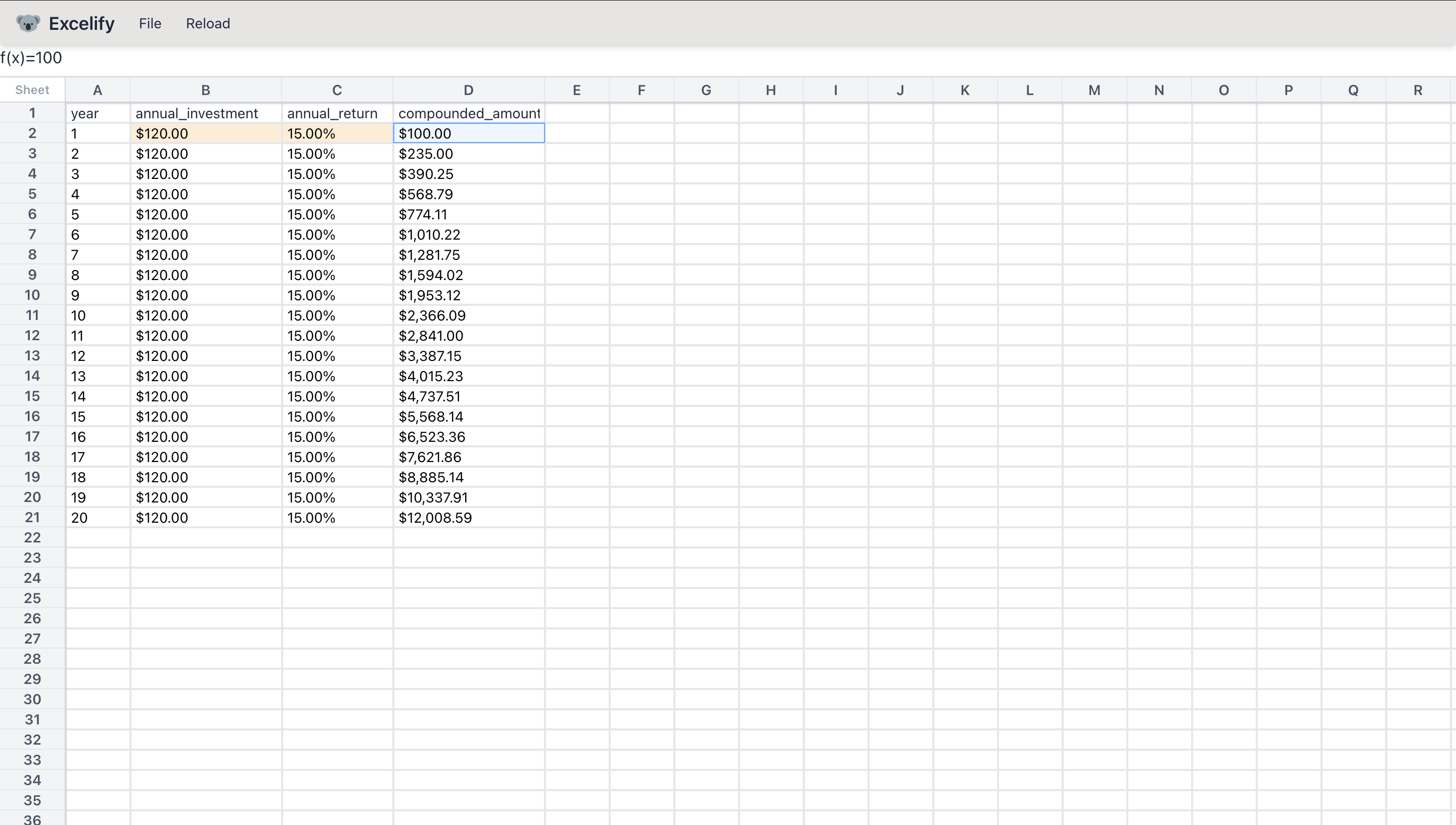
Code for the above table.
```python
import excelify as el

length = 20

# Define the table.
df = el.ExcelFrame.empty(
   columns=["year", "annual_return", "compounded_amount", "annual_investment", "total_return"],
   height=length,
)
# Define formula for each column.
df = df.with_columns(
   year=el.lit([i + 1 for i in range(length)]),
   annual_return=el.map(
       lambda idx: 0.15 if idx == 0 else el.col("annual_return").prev(1)
   ),
   annual_investment=el.map(
       lambda idx: 120.0 if idx == 0 else el.col("annual_investment").prev(1)
   ),
   compounded_amount=el.map(
       lambda idx: 100.0
       if idx == 0
       else (
           el.col("compounded_amount").prev(1) * (1.0 + el.col("annual_return"))
           + el.col("annual_investment")
       )
   ),
   total_return=el.map(
       lambda idx: (el.col("compounded_amount") - el.cell(df["compounded_amount"][0])) / el.cell(df["compounded_amount"][0])
   ),
)

# Reorder the columns.
df = df.select(["year", "annual_investment", "annual_return", "compounded_amount", "total_return"])

# Make certain cells editable for interactivity.
df["annual_investment"][0].is_editable = True
df["annual_return"][0].is_editable = True
df["compounded_amount"][0].is_editable = True

# Style the table.
(
   df.style.fmt_integer(columns=["year"])
   .fmt_currency(columns=["annual_investment", "compounded_amount"], accounting=True)
   .fmt_percent(columns=["annual_return", "total_return"])
)

sheet_styler = el.SheetStyler().cols_width({"B": 150, "C": 110, "D": 150, "E": 120})

# Display to excelify-viewer.
el.display([(df, (0, 0))], sheet_styler=sheet_styler)
```
Excelify x Claude Code
Similar to any other LLM applications, the success rate of fully automating
spreadsheet creation is not 100%. It was particularly painful to tell LLM that
certain API’s just don’t exist. After a few iterations, I’ve modified a
CLAUDE.md file that I used during the development on Github. You can check it
out here.
Conclusion
The project is very far from perfect, but I thought it was worth sharing it early to get a more concrete feedback. Also, I thought the spreadsheet development workflow should be treated like a development workflow: incrementally build the tables, and have an easy way to verify whether the changes look reasonable or not. Excelify is trying to solve both of these problems by providing a framework to specify the tables you’d like to build as a “config” file that’s easy to build incrementally and check the diff.
If you have any feedbacks/questions, feel free to email me or leave an issue on the Github project!